
01
Simple language
Technical terms are explained simply, helping anyone understand without jargon.
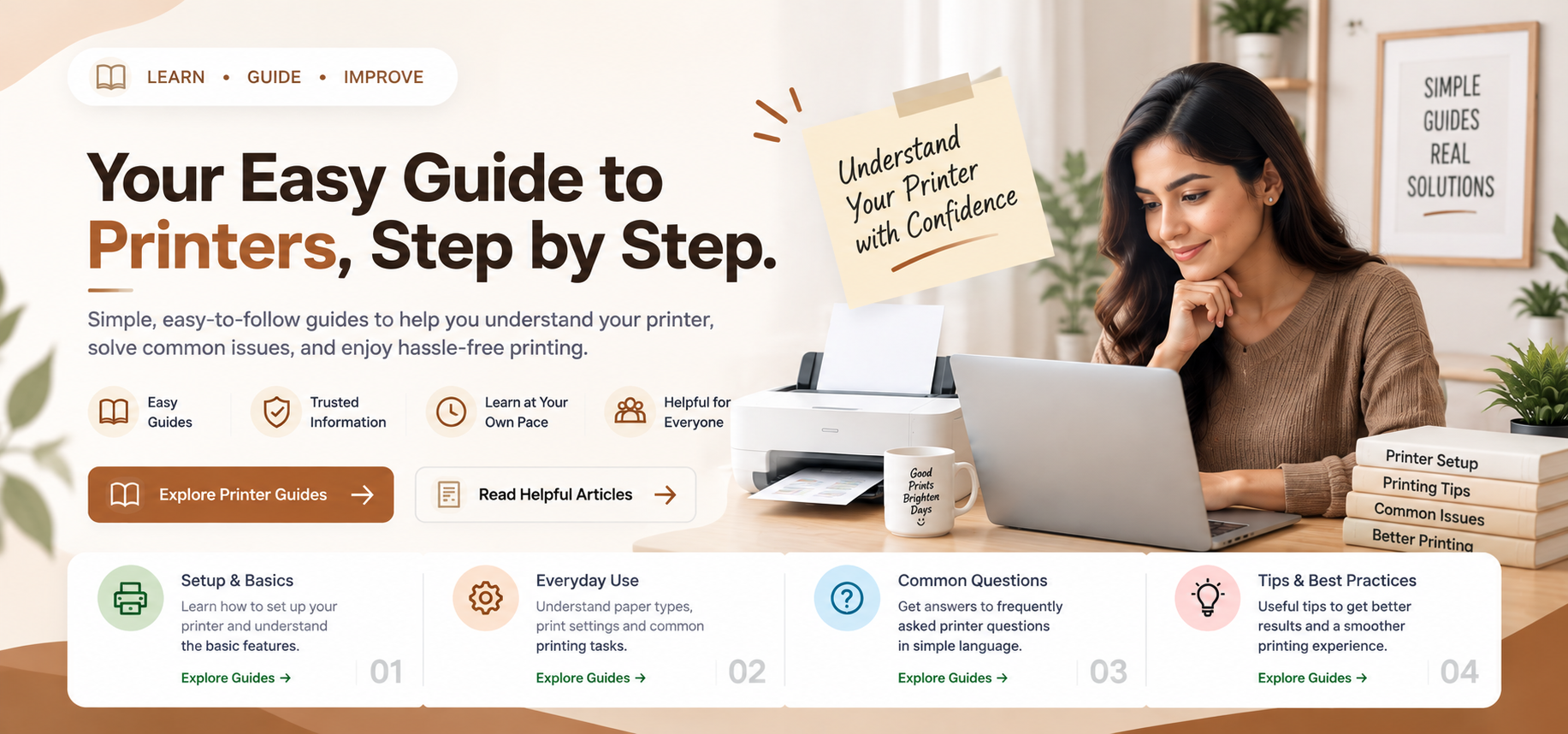
Clear educational guides for printer connectivity, queue errors, driver setup, and Wi-Fi networking.
 Status & Connectivity
5 min read
Status & Connectivity
5 min read
Understand printer offline messages, communication path drops, USB and network connection recovery, and default device settings.
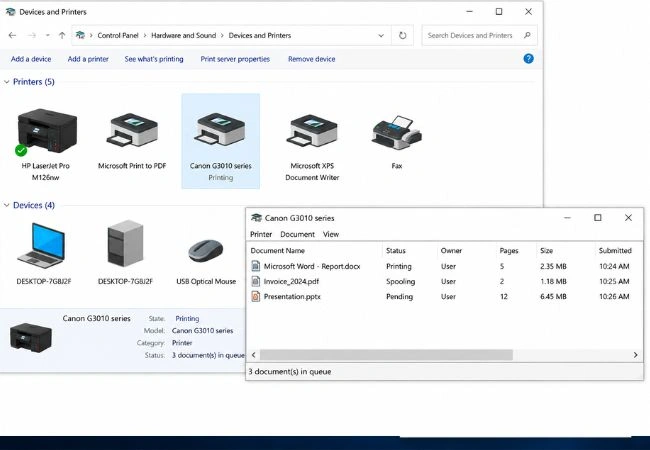 Print Service & Cache
4 min read
Print Service & Cache
4 min read
Learn how to clear stuck documents from the print queue, restart the Windows Spooler service, and wipe locked print cache.
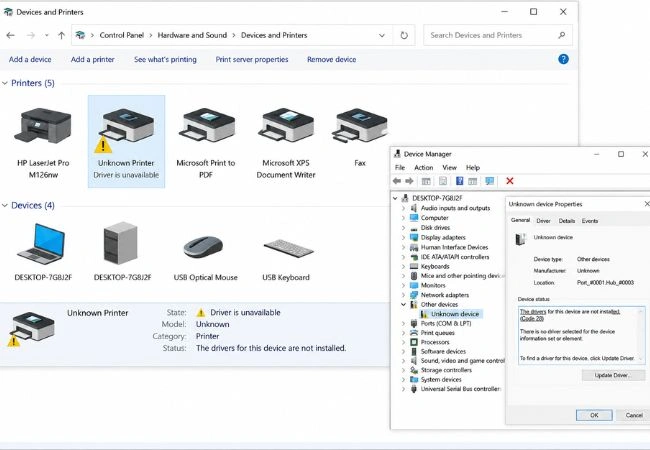 Driver & Installation
8 min read
Driver & Installation
8 min read
Explore driver unavailable alerts, INF installation methods, USB port recognition, and manufacturer setup packages.
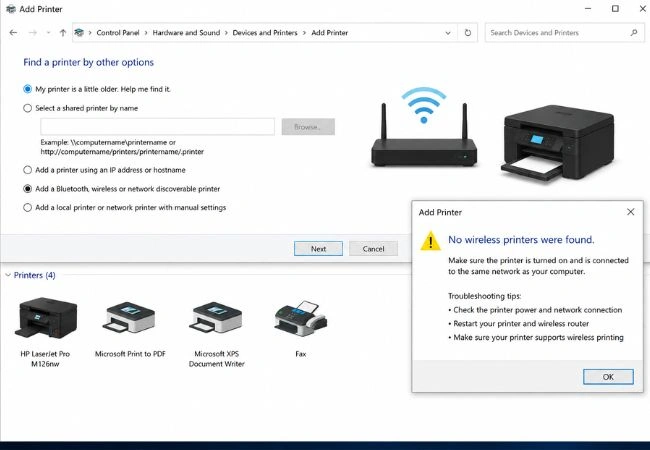 Wireless & LAN
6 min read
Wireless & LAN
6 min read
Learn how wireless printers discover on home Wi-Fi, assign static IP addresses, and configure local network printer sharing.
This section explains how our independent guide library helps readers understand everyday device messages, connections, and system behaviour.
Many technology messages feel confusing because they mix device settings, network behaviour, and system activity. Our guides break those ideas into smaller, structured learning points.
Learn what offline, connection, and update messages mean in plain terms.
Understand how devices, accounts, Wi-Fi networks, and OS settings interact.
Technical terms are explained simply, helping anyone understand without jargon.
Follow a clear, logical sequence from basic concept to advanced settings.
Printers, Wi-Fi, drivers, and queues are divided into dedicated guides.
No phone support, no remote access, no paid diagnostics or software sales.
Read all complete guides anytime without creating an account or paying fees.
Guides are continuously reviewed to stay accurate with modern Windows updates and devices.
Select the category that matches the message or behavior you want to understand.
Review the meaning, port configurations, and settings in a structured sequence.
Apply the learning to navigate system settings and device states with confidence.
Choose a category below and continue with a focused guide. Each topic is written to help you understand messages and settings in simple language.
Search by message, symptom or category. Select an issue to preview its diagnosis before opening the related educational guide.
Your printer is powered on and connected to the cable or Wi-Fi, but the computer shows it as offline, paused or unreachable.
Documents are stuck in the print queue status bar, preventing any new print jobs from processing or deleting.
Laptop sends print commands but the printer does not respond, or the Add Printer wizard cannot discover the printer on the wireless network.
Windows shows a yellow exclamation mark or "Driver is unavailable" when plugging in a USB printer cable.
The printhead moves and carriage feeds sheets, but the output paper contains no black or color ink text.
Printer locks up, refuses new network SSIDs, or retains corrupted NVRAM cache after router password changes.
You want other computers on your home network to send print jobs to a printer connected via USB to a main PC.
Printed documents show horizontal white lines, faded black text, or incorrect color alignment during print jobs.
Know Your Guide is an independent educational resource created to explain common device messages, settings, connections and system behaviour in clear language.
A printer showing offline, Wi-Fi connecting without internet access, or documents frozen in a queue can feel difficult to understand. The library explains what those situations usually mean and how settings connect.
Connection status, queues, alerts and common device messages.
Signals, passwords, gateways, DNS and connectivity behaviour.
Login, server settings, authentication and message delivery.
Startup, storage, background activity and Windows update concepts.
Each topic is explained with simple language so readers can understand device behaviour without unnecessary technical complexity.
The library focuses on educational explanations, common terminology, device messages, settings, and everyday technology concepts.
Readers can browse the complete learning library without creating an account, paying a fee, or starting a subscription.
Read common questions about our independent educational resources, printer guides, and clear boundaries.
Our guides are designed for self-paced learning to help you understand what causes device and printer issues.
No remote access, phone callbacks, paid repair, or driver sales are provided.
No. Know Your Guide is an independent educational library. We write self-guided learning resources and printer connection guides. We do not offer phone callbacks, remote logins, paid driver downloads, or technician dispatch.
Reference: Microsoft Learn (Windows driver architecture concepts)You can explore beginner-friendly guides about printer offline status, print spooler errors, stuck document queues, driver unavailable alerts, USB detection, Wi-Fi printer setup, local network printer sharing, blank page issues, and factory resets.
Reference: Microsoft Support (Add or install a printer in Windows)Printer offline status usually means Windows has lost the active communication path to the printer. This can be caused by dynamic IP address changes on Wi-Fi routers, paused print queues, loose USB cables, or SNMP status query mismatches in printer port settings.
Reference: Microsoft Support (Fix printer connection and printing problems in Windows)When a corrupt document blocks the print queue, Windows refuses to process any new print tasks. Stopping the Print Spooler service allows deleting temporary files stored in the System32\spool\PRINTERS folder, instantly unfreezing the queue.
Reference: Microsoft Learn (Print Spooler service troubleshooting)No. All our educational guides explain built-in Windows features and standard manufacturer procedures. We do not sell software, require payment, or ask for sensitive system access.
Reference: Manufacturer Standards (HP & Canon Printer Documentation)Explore selected articles about printers, Wi-Fi, email and system behaviour through clear, beginner-friendly educational reading.
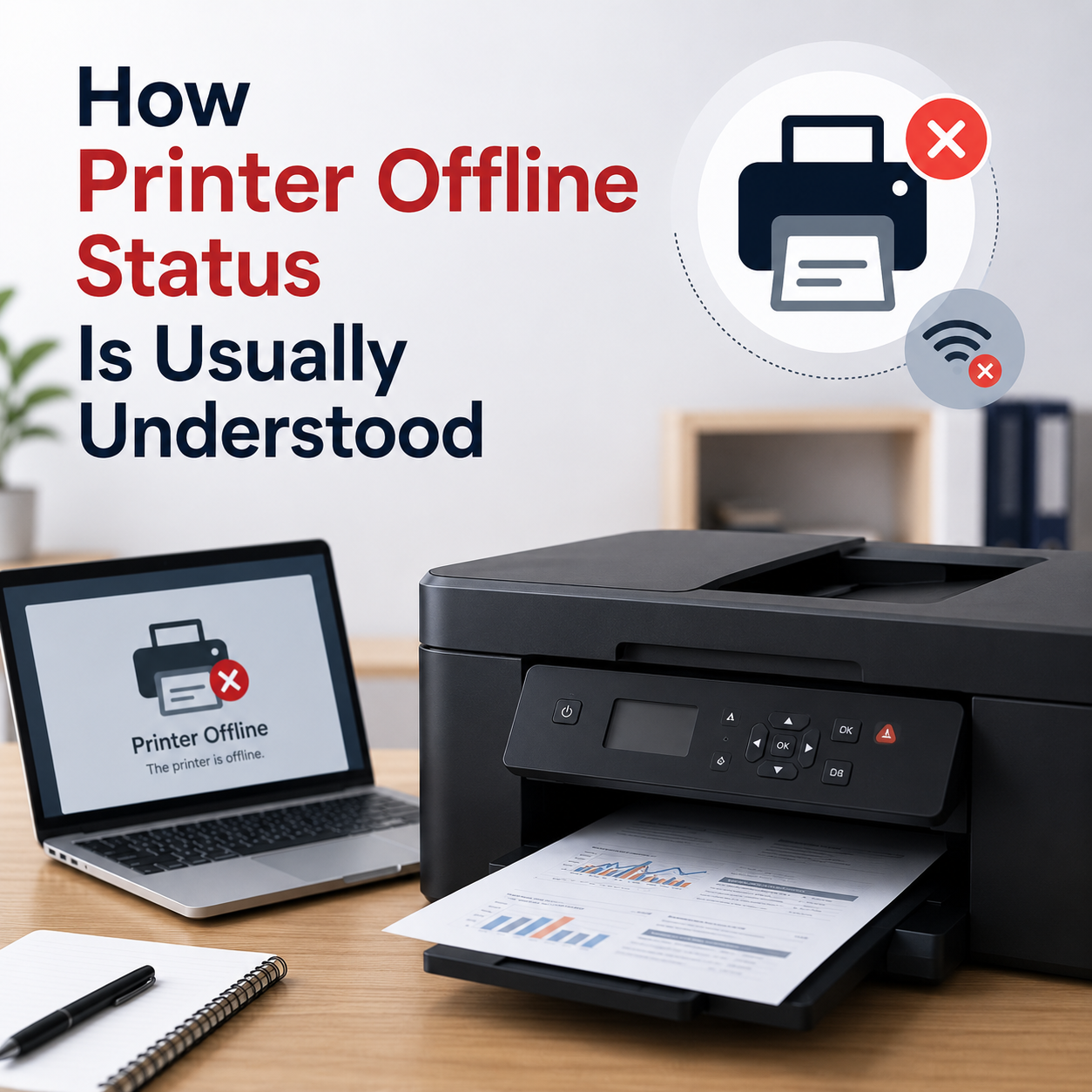
Learn what offline status may mean, how printer queues work, and why connection or default printer settings matter.
Learn how factory resets clear cached printer settings, restore network cards, and wipe corrupted offline configurations.
Learn common reasons why printers output blank sheets, covering dry ink cartridges, clogged nozzle heads, and driver print files.

Learn how network sharing works for home printers, how to turn on Windows file and printer sharing, and locate IP paths.